Erase to transparent
Brush over a backdrop and it turns see-through. Save a PNG ready to place on anything.
No photo handy?
FreeNo sign-upPhotos stay on your device
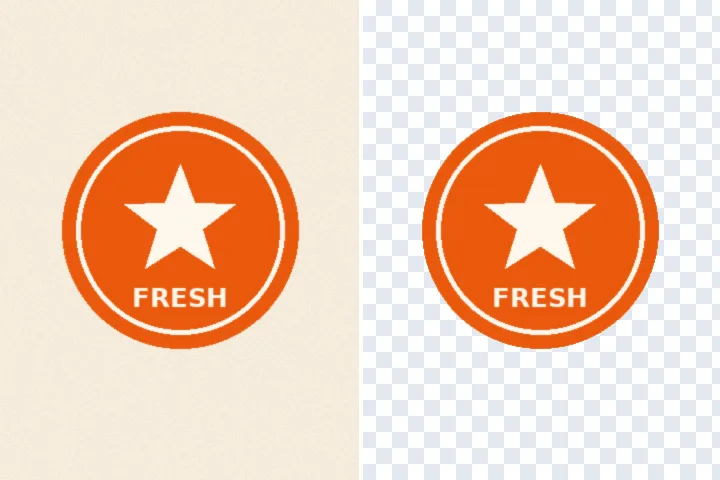
Every other mode on this site rebuilds what was behind the thing you painted. This one does not: the painted region is cleared to alpha 0 — see-through — with its edge fading over the feather width, and the picture is saved as PNG or WebP so the transparency survives. Nothing is drawn in and nothing is guessed.
Clearing is not filling
A fill answers the question “what would be there if this were gone?” and invents an answer from the surrounding pixels. Clearing answers a different question — “what should not be part of this picture at all?” — and its answer is nothing. That is the job for a sticker cut from a photo of a white page, a logo lifted off its backdrop, a stamp, or an overlay you will place on something else later.
The method here only ever lowers the alpha channel. Inside the painted region it goes to zero; across the feather band it fades, so the edge is soft instead of stair-stepped; outside the band it is untouched, byte for byte. The colour values under a cleared pixel are left as they were, which is why undo, restore and taking one clearing out of the record are exact.
What this mode does not do is find the subject for you. It clears what you mark. On a plain backdrop, Similar colour with “whole frame” marks the backdrop in one tap; on a busy photograph you paint the region yourself.
Clear only images you have the right to change. Cutting a mark or a signature out of someone else's document is not made legitimate by doing it on your own device.
Working it
- Open the picture. Drop it, paste it or pick it. A PNG that already has transparency keeps it.
- Mark what should be see-through. Brush over it, ring it with the lasso, or tap a plain backdrop with Similar colour (tick whole frame to take every patch of that colour).
- Set the feather. One pixel gives a crisp edge; three to five soften it for a photograph. The checkerboard shows what will be clear.
- Clear. Press Erase. The region goes see-through and a row appears in the removal record; undo or take it out at any time.
- Save as PNG or WebP. PNG is selected. Both keep the alpha channel; a JPG has none and writes white where the picture is clear.
What this mode will not do
- It does not detect a subject or a background on its own. It clears what you mark.
- Hair, fur and glass need a soft, partial alpha that a hand-painted region cannot give; the edge will be a fade, not a strand-by-strand cut.
- JPG has no transparency. Saved as JPG, the cleared area is written as white.
- Clearing removes nothing from other copies of the file, and nothing from what is under a cover in a layered document elsewhere.
Questions about this mode
Is my picture uploaded to make it transparent?
Which format keeps the transparency?
Can it remove the whole background automatically?
Why is the edge soft?
Can I put back part of what I cleared?
Related ways in
Erase To Transparent