Remove unwanted objects from photos
Mark every distraction at once and clear them all together.
No photo handy?
FreeNo sign-upPhotos stay on your device
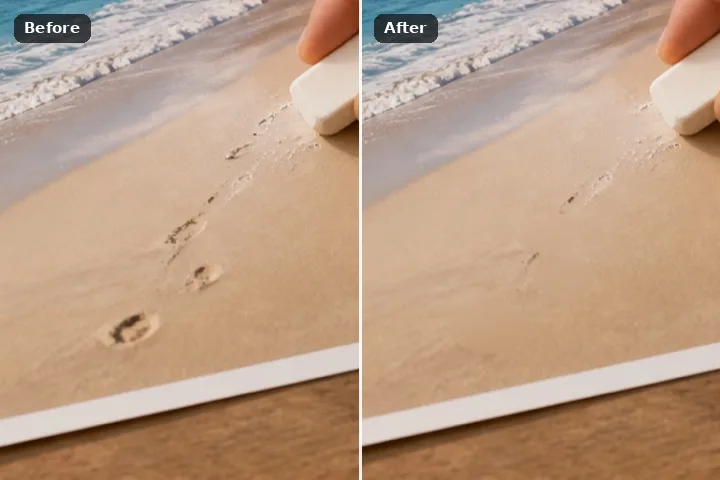
Paint over every bin, sign, wire and stray bag in one go. Each separate patch of paint becomes its own removal, filled smallest first by the method that suits its shape, and listed in the record so any one can be redone without touching the others.
Why several removals, not one big one
A street scene rarely has one thing wrong with it. There is a bin, a parking sign, a cable and somebody's elbow, and they sit on four different surfaces. Painting all of them and pressing Erase once would hand one engine four unrelated problems: the thin cable would go to the patch search because the bin made the region look wide, and the patch search would look for sign-coloured texture to fill the bin with. Here every separate patch of paint is measured on its own and routed on its own.
The order matters too. Small removals go first, because a small hole closes from pixels that are almost certainly right, and once it is closed it becomes clean surround for the bigger hole next to it. Each one lands in the removal record as its own row — the engine that ran, the pixels it wrote, where they came from — and any one of them can be re-rolled or taken back out while every other keeps its pixels exactly.
Working it
- Paint every unwanted thing. Use the brush, the rectangle or the lasso. Keep separate objects as separate strokes; anything that touches is treated as one.
- Leave Each separate area ticked. It is on by default here. Every area becomes its own removal, in the record and in the undo history.
- Press Erase once. The areas are filled smallest first. The progress line names the area it is on — Area 2 of 5 — and the record grows by one row per area.
- Judge each one in Compare. Drag the divider over each repaired spot. Look at the join, not the middle.
- Re-roll the one that is wrong. Pick its row in the record, choose the same engine for a new seed or another engine, and press Re-roll. Only that area is recomputed; the previous result is kept to flip back to.
What this mode will not do
- Areas that touch are one area. If a bin stands in front of a sign, paint them as one region or separate them with the restore brush first.
- More than twenty-four separate areas in one press is filled as a single removal rather than listed one by one; the page says so when it happens.
- Nothing here knows what an object is. The record names the method, not the thing removed.
- A re-roll of the patch search gives a different texture; a re-roll of the edge march or the smooth fill gives the same pixels, so for those the record offers another engine instead.
Questions about this mode
Does my photo get uploaded when I erase several things?
Which method fills each area?
What if one of the removals looks wrong?
Can I undo just the third removal?
Is there a download?
Related ways in