Remove scratches from old photos
Dust and scratches on an old scan are found for you. Check them, then clear them.
No photo handy?
FreeNo sign-upPhotos stay on your device
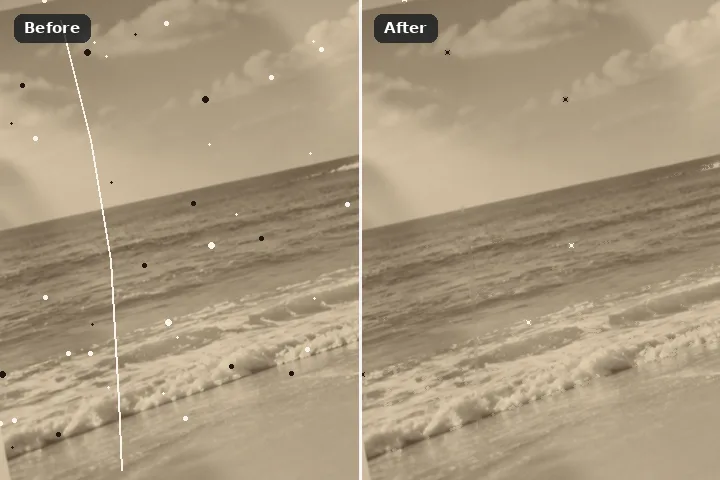
The scan is searched for dust and scratches the moment it opens — specks and long thin lines that differ sharply from their surroundings — and they are proposed as the region for you to check. Nothing is filled until you press Erase; the edge march then closes each defect from its own edges.
Why the scan is proposed, never auto-filled
Dust on a scan is easy to see and tedious to paint: hundreds of specks, a hair, a scratch from a sleeve. The proposal does the tedious part. A pseudo-median seven pixels across erases anything up to about three pixels wide; whatever it erased, beyond the threshold, is a candidate defect. Candidates are then kept only if they are small (a speck) or long and thin (a scratch or a hair).
That shape test is what keeps texture out — grain, gravel and foliage pass the difference test everywhere and fail the shape test — but it is a heuristic, and stars in a night sky, catchlights in eyes and sparkle on water look exactly like dust to it. So it proposes and you review: take back anything that belongs to the picture with the restore brush, then erase.
Working it
- Open the scan. The proposal runs straight away. The live line says how many specks and scratches it found.
- Look at what was proposed. Zoom to 1:1 and pan. Catchlights, stars and highlights are the usual false finds.
- Take back what belongs to the picture. Restore brush, or Take out with the rectangle.
- Adjust the threshold. Lower finds fainter dust; higher finds only the obvious. Press Dust & scratches again to re-propose.
- Erase. The edge march closes each thin defect from its edges. A large tear is better re-rolled with the patch search.
What this mode will not do
- It cannot tell dust from a star, a catchlight or a sparkle on water. That is why it only proposes.
- Scratches wider than a few pixels and torn corners are removals, not dust — paint them and use the patch search.
- On a heavily textured scan most of the frame passes the test; the page says so and proposes nothing rather than marking the whole picture.
- Faded colour, mould and silvering are not defects it looks for.
Questions about this mode
Is my scan uploaded?
Which engine fills a scratch?
Why did it mark the stars in my night sky?
Can I clean a whole roll of scans at once?
Does it download anything?
Related ways in



Remove Scratches