Photo blemish remover
Tap a spot and it heals from the clean area around it.
No photo handy?
FreeNo sign-upPhotos stay on your device
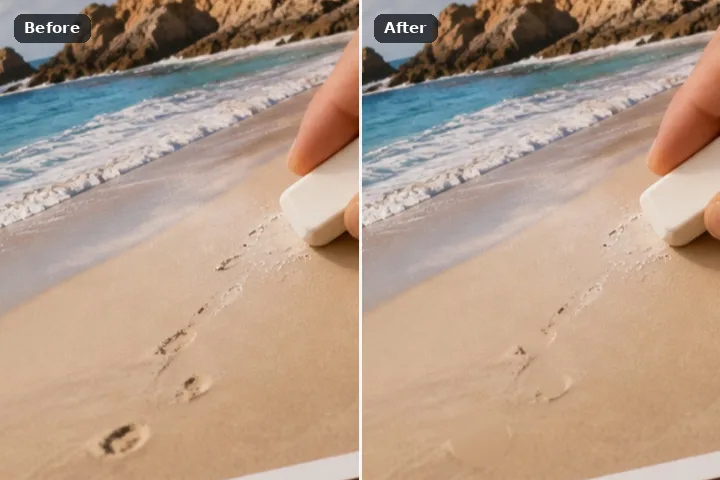
Click a spot. The circle sizes itself to the spot — from 3 to 60 pixels — by finding where it stops differing from the clean ring around it, and heals from that ring. Dust on a product, a stain on a wall, a mark on a page, a spot on a cheek.
Why a click is enough
A blemish is small, roughly round and surrounded by what it should look like. The work is in the sizing: too small a circle leaves a ring of the mark, too large one throws away the texture the repair needs. So the heal measures before it fills — it averages the colour of each one-pixel ring around the click, compares it with the ring two pixels further out, and the first radius where they agree is where the spot ends. A quarter more is added so the soft edge goes too.
Then the region is filled from the ring it was just measured against. Spots of a few pixels go to the edge march; larger ones to the patch search, which copies matching texture from close by. There is no skin smoothing, no reshaping and no beauty filter here — those are a different product, and they change the person rather than remove a mark.
Do not retouch passport, visa or exam photographs: they must be unaltered by software. The guide on photos you should not edit explains what to do instead.
Working it
- Click the spot. The circle sizes itself and the spot heals. The live line says how large the circle was.
- Click the next one. Each heal is its own removal in the record, so one bad heal can be re-rolled without touching the others.
- Or collect several first. Untick Heal each spot as I click, click every spot, then press Erase — they become one removal.
- Check at 1:1. Press = for actual size. Look for a smooth disc where there should be grain.
- Re-roll the odd one out. Select its row, pick the patch search or the clone, re-roll.
What this mode will not do
- A click on nothing in particular finds no spot and marks a circle the brush size instead; the page says so.
- Spots larger than 60 pixels across are a removal, not a blemish — paint them with the brush.
- A mark sitting on a strong edge (an eyelid, a hairline, the edge of a label) can bend that edge; zoom in and use the clone.
- No skin smoothing, no face reshaping, no automatic beautify. Nothing here changes what a person looks like beyond the mark you click.
Questions about this mode
Is my photo uploaded to heal the spots?
How does it decide how big the spot is?
Which fill does the heal use?
Can I use it on a portrait?
Does it download anything?
Related ways in
Remove Blemishes